
ShapeScan & Advanced 3D Fabrication: Beyond Simple 2D to 3D Extrusion
Learn how to transform scanned profiles into complex 3D assemblies, parametric CAD models, and tolerance-engineered parts for professional fabrication.
True-scale outlines for laser, CNC and custom Gridfinity inserts.
Transform real objects into true-scale outlines.
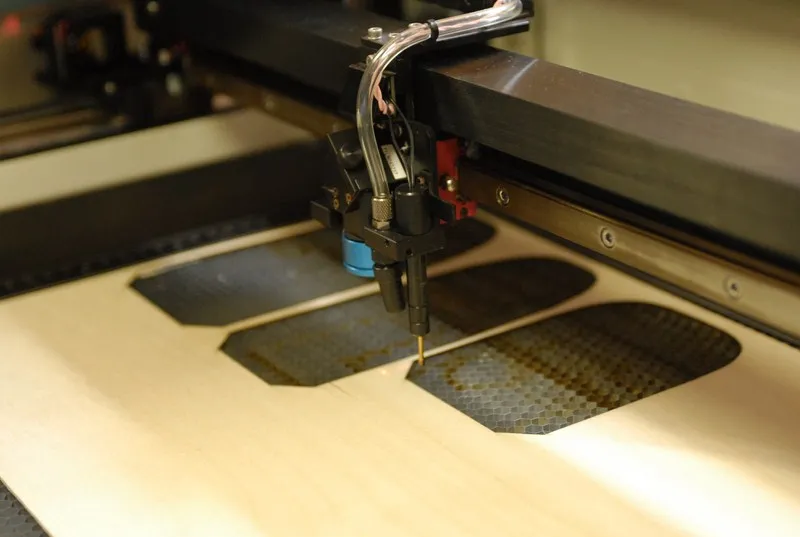
Digitize hand‑drawn designs, existing parts, or organic shapes into cut‑ready DXF files. Perfect for acrylic, wood, leather fabrication.
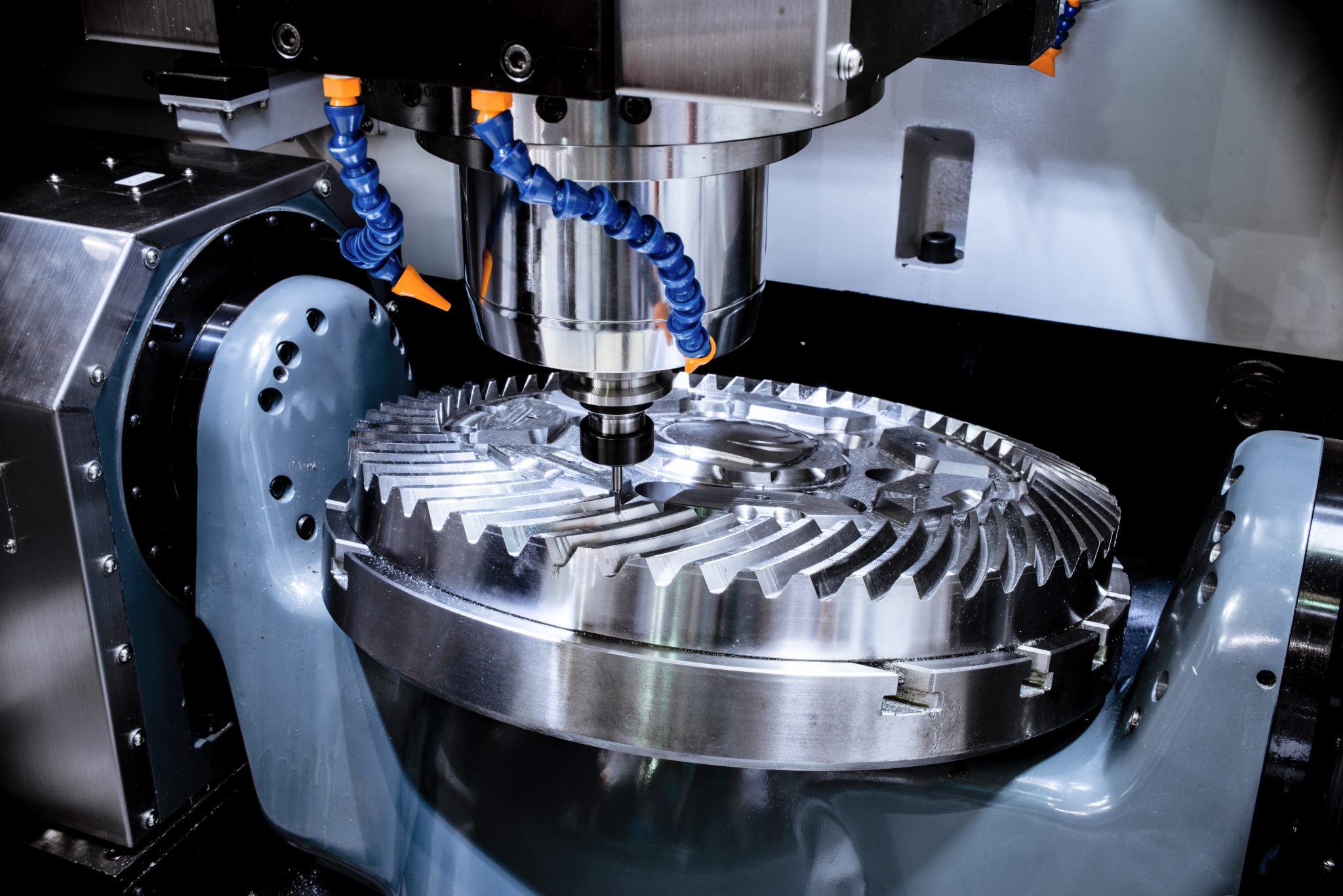
Create custom foam inserts, tool holders, or vacuum fixtures by scanning physical objects directly. Export to DXF for CAD software.
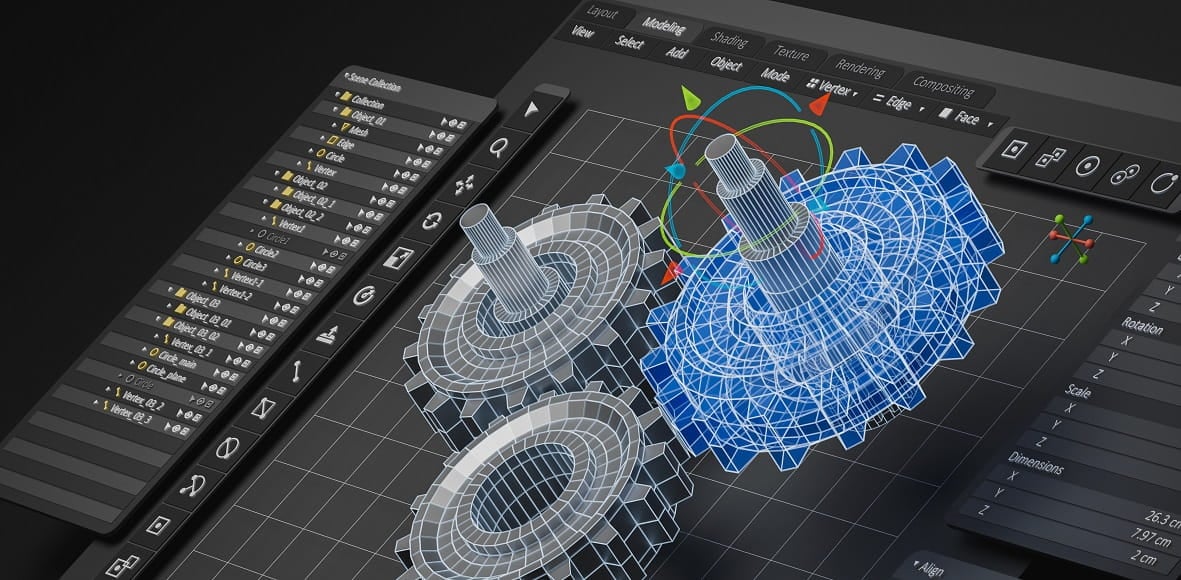
Convert real‑world objects into scale‑accurate SVG/STL for Fusion 360, SolidWorks, or Blender reference. Perfect for reverse engineering.
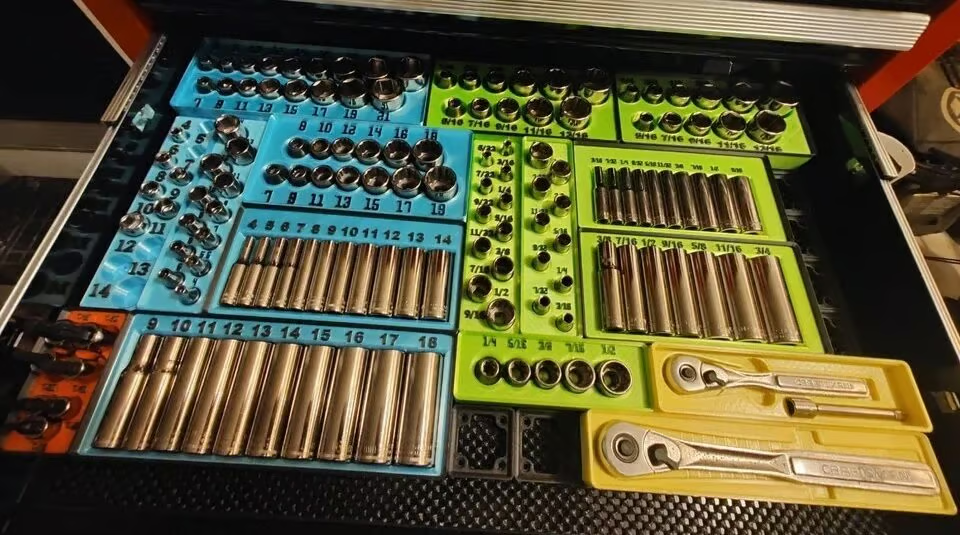
Scan tools, electronics, or kitchen items to design perfect‑fit organizers for 3D printing. Create custom Gridfinity bases in minutes.
Four ArUco corners establish scale and correct perspective. For the cleanest geometry, use the phone's normal lens and keep the camera parallel to the sheet.
BiRefNet-assisted segmentation separates the object from the sheet. Difficult shadows, reflections or transparent materials may still need a better photo or editor refinement.
Contour points can snap to visible edges, and the built-in editor lets you inspect and refine the result before manufacturing.
Export SVG, Fusion SVG, DXF, PNG, STL or STEP. Always verify critical dimensions, tolerances and fit before cutting or printing.
Free guides for makers, engineers, and fabricators
Learn how to transform scanned profiles into complex 3D assemblies, parametric CAD models, and tolerance-engineered parts for professional fabrication.
Deep dive into the computer vision techniques that correct lens distortion and perspective warp, enabling professional-grade measurements with consumer cameras.
Complete guide to converting physical objects into precision CNC toolpaths for routing, milling, plasma cutting, and professional fabrication workflows.
Create perfectly fitting Gridfinity organizers by scanning your tools, electronics, and workshop items. Streamline your 3D printing organization workflow.
With a flat, correctly printed marker sheet and a sharp photo, ±1 mm is a typical target. Results vary with capture quality, material, scale, machine calibration and kerf, so verify critical dimensions before manufacturing.
No special rig is required. A modern smartphone, a correctly printed marker sheet and soft light are enough. Use the normal lens, keep the full sheet visible and avoid blur or strong perspective.
Yes. Enable "Keep internal holes" in advanced settings. ShapeScan will detect openings like scissors handles, wrench holes, or decorative cutouts and preserve them as separate paths in the SVG/DXF. The editor also lets you manually add or remove holes.
SVG is best for laser cutters, vinyl cutters, and web use. DXF is the industry standard for CAD software (Fusion 360, AutoCAD, SolidWorks). ShapeScan generates both with identical geometry. For CNC machining, use DXF. For laser cutters, SVG often works directly.
Processing happens on ShapeScan's servers. Anonymous jobs are temporary; account jobs can remain saved up to the limit of the selected plan. We do not sell uploaded images. See our Privacy Policy for retention and service-provider details.
Yes. Files you generate may be used in personal and commercial projects, subject to the Terms of Service. Free use has queue, batch and storage limits; optional Premium plans add capacity and priority processing.
Real projects built with ShapeScan — shared by the community.
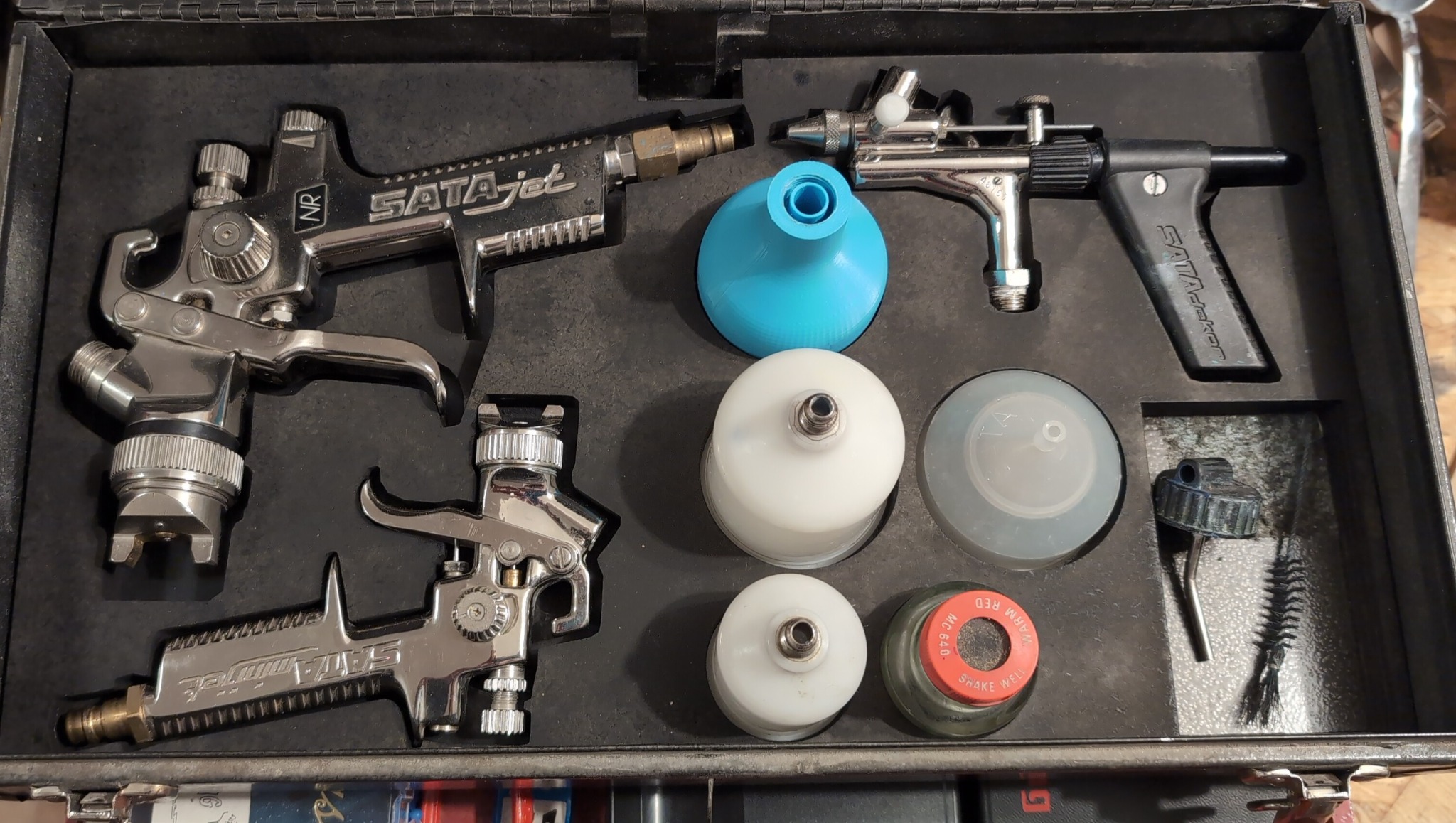
“I made an organizer for my air‑brushes using ShapeScan. Worked like a charm.”
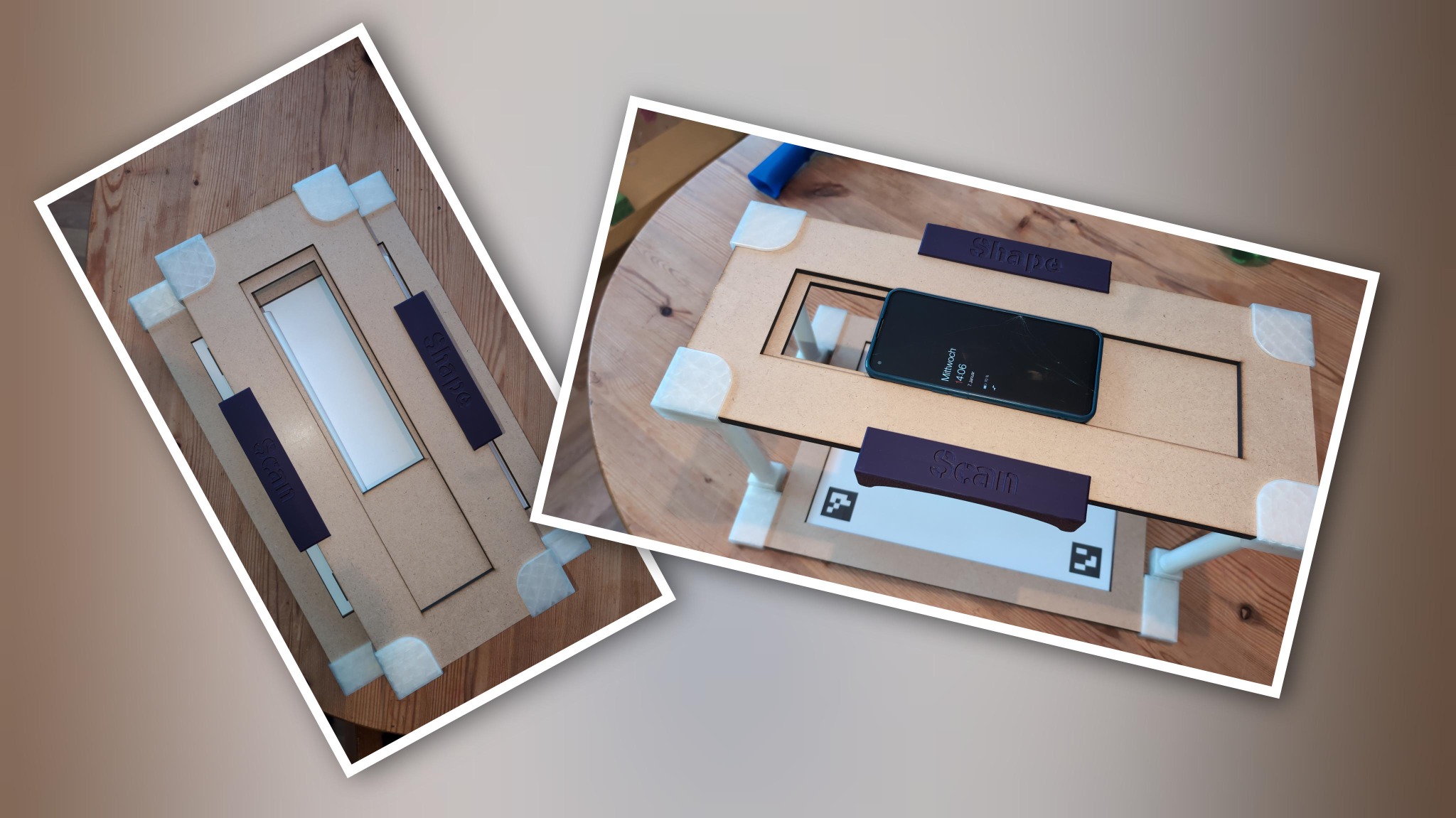
“Made a little contraption that can be stored away easily… limited to 200mm height (easy to change).”
“The tool is called ‘ShapeScan’, and it’s completely free to use.”
Read the article →“An image is turned into a clean outline… saved as SVG, DXF, PNG, or STL.”
Read the article →