
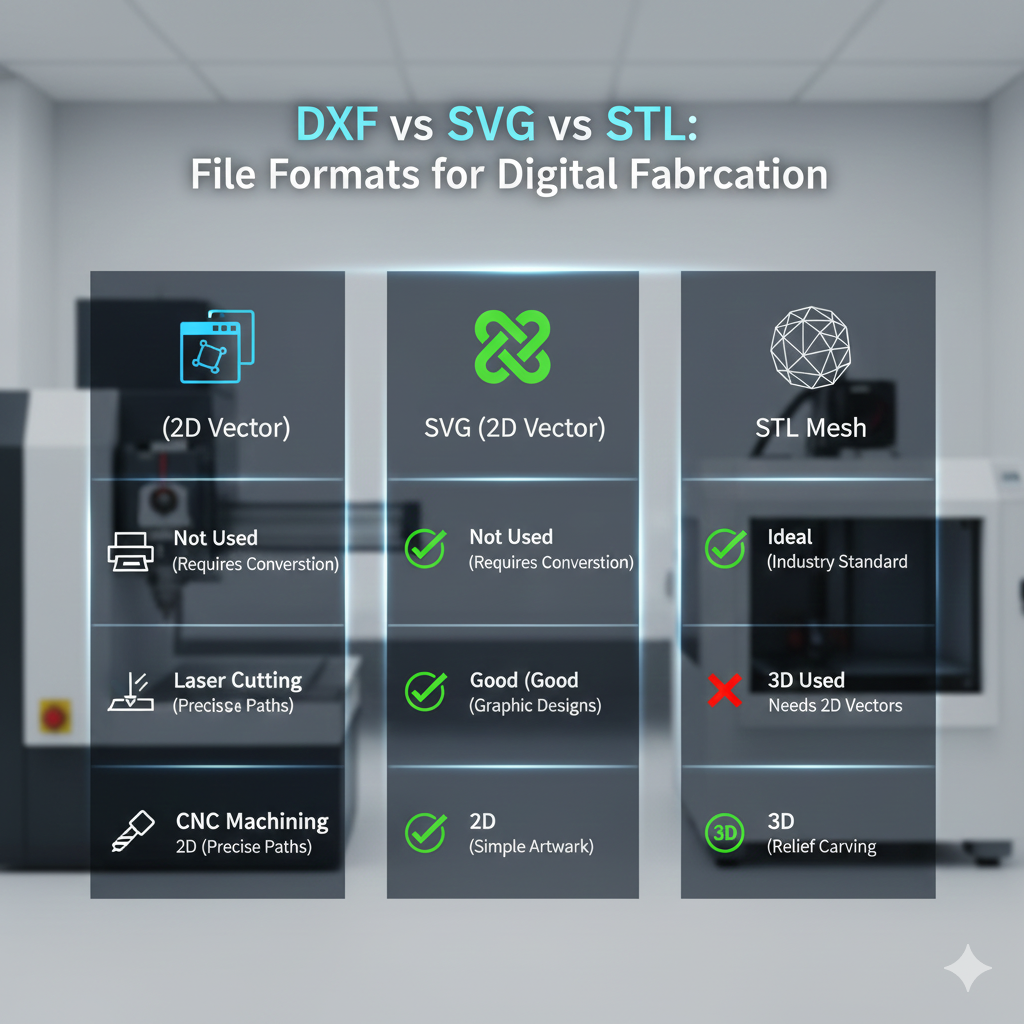
Choosing the right file format is critical in digital fabrication. Use the wrong format and you might waste hours troubleshooting, get incorrect dimensions, or even damage equipment. This guide breaks down the three most common formats—DXF, SVG, and STL—and explains when to use each for CNC machining, 3D printing, and laser cutting.
Quick Summary: Which Format When?
| Format | Best For | Key Features | ShapeScan Export |
|---|---|---|---|
| DXF (Drawing Exchange Format) |
CNC machining, Plasma cutting, Professional CAD/CAM | Industry standard, 2D/3D vectors, Layer support | ✓ Yes (AutoCAD compatible) |
| SVG (Scalable Vector Graphics) |
Laser cutting, Vinyl cutting, Web graphics | Web standard, Scalable, Text support, CSS styling | ✓ Yes (Primary format) |
| STL (Stereolithography) |
3D printing, Rapid prototyping, Additive manufacturing | 3D mesh format, Triangle-based, Universal for 3D printers | ✓ Yes (10mm extrusion) |
DXF: The Industry Standard for 2D/3D CAD
Technical Specifications
- Origin: Developed by Autodesk for AutoCAD (1982)
- Type: Vector format (2D & 3D)
- Units: Unitless (depends on CAD software interpretation)
- Precision: High (double precision floating point)
When to Use DXF
- CNC Milling/Routing: Toolpath generation in software like Fusion 360, Mastercam, or VCarve
- Plasma Cutting: Industrial metal fabrication with software like SheetCam
- Architectural Drawings: Floor plans, elevations, and construction documents
- Mechanical Engineering: Machine parts, assemblies, and technical drawings
🔧 ShapeScan DXF Workflow
From Photo to CNC Machine:
1. Scan object with ShapeScan
2. Export DXF file
3. Import into CAD/CAM software (Fusion 360, VCarve, etc.)
4. Generate toolpaths with appropriate offsets (kerf compensation)
5. Export G-code for your specific CNC machine
Pro Tip: Always verify dimensions after DXF import. Some software may interpret units differently.
SVG: The Web-Friendly Vector Format
Technical Specifications
- Origin: W3C standard for web graphics (1999)
- Type: XML-based vector format (2D only)
- Units: Can use pixels, millimeters, inches, or percentages
- Features: Supports CSS styling, gradients, text, and interactivity
When to Use SVG
- Laser Cutting: Direct import into laser software (LightBurn, RDWorks)
- Vinyl Cutting: Sign making and decals with software like Silhouette Studio
- Web Applications: Interactive diagrams, logos, and UI elements
- Desktop Publishing: Scalable graphics for print materials
⚡ ShapeScan SVG Advantages
Precision & Scalability:
• ShapeScan exports SVG with real-world millimeter coordinates
• All paths are closed and ready for cutting
• Embedded scale reference ensures 1:1 accuracy
• Compatible with Inkscape, Illustrator, and CorelDRAW
Editing Flexibility: SVG files can be edited with any text editor or vector software, making last-minute adjustments easy.
STL: The 3D Printing Standard
Technical Specifications
- Origin: Created for stereolithography 3D printing (1987)
- Type: 3D surface mesh (triangular facets)
- Units: Unitless (usually millimeters in practice)
- Resolution: Defined by triangle count and size
When to Use STL
- FDM 3D Printing: Desktop printers (Prusa, Creality, Ultimaker)
- Resin Printing: SLA/DLP printers (Formlabs, Anycubic)
- 3D Scanning Output: Mesh data from 3D scanners
- Rapid Prototyping: Quick iteration of physical models
ShapeScan's 3D Export: Understanding the 10mm Extrusion
ShapeScan creates STL files by extruding your 2D profile to a height of 10mm. This approach is intentional:
🔄 Parametric Flexibility
Import into CAD software and easily modify the extrusion height to match your needs.
📏 Consistent Scale
Maintains the exact millimeter dimensions from your scan, just extended into the third dimension.
🛠️ CAD Integration
Use as a base for complex 3D modeling operations in Fusion 360, SolidWorks, or Blender.
Format Conversion Considerations
SVG → DXF
When: Need to move from laser workflow to CNC workflow
Tools: Inkscape (Save As DXF), online converters, CAD software
Watch out: Text and gradients may not convert properly
DXF → STL
When: Converting 2D CAD drawings to 3D printable objects
Tools: Fusion 360 (Import DXF → Extrude → Export STL)
Watch out: Ensure proper unit conversion (mm to mm)
STL → SVG/DXF
When: Extracting 2D profiles from 3D models
Tools: Slicer software (take a slice at specific Z-height)
Watch out: May lose detail depending on slice position
Real-World Application Scenarios
📦 Custom Packaging Inserts
Workflow: Scan product → Export SVG/DXF → Laser cut foam/acrylic
Best Format: SVG for laser, DXF for CNC router
Why: Vector precision ensures perfect fit
🔧 Replacement Parts
Workflow: Scan broken part → Export STL → 3D print replacement
Best Format: STL (with 10mm extrusion from ShapeScan)
Why: Direct path to 3D printer with correct dimensions
🏭 Small Batch Production
Workflow: Scan template → Export DXF → CNC mass production
Best Format: DXF for professional CAM software
Why: Industry compatibility and precision
Common Pitfalls & Solutions
⚠️ "My DXF is the wrong size!"
Cause: Unit mismatch during import (mm vs inches)
Solution: Always check import settings. ShapeScan exports in millimeters.
⚠️ "SVG won't cut properly!"
Cause: Open paths or non-cutting elements
Solution: Use ShapeScan's editor to ensure all paths are closed before export.
⚠️ "STL won't slice correctly!"
Cause: Non-manifold edges or inverted normals
Solution: ShapeScan's STL export is optimized for 3D printing with clean geometry.
Conclusion: Match Format to Manufacturing Method
Ask yourself:
- What machine am I using?
Laser cutter → SVG
CNC router → DXF
3D printer → STL - What software will process the file?
LightBurn, RDWorks → SVG
Fusion 360, VCarve → DXF
Cura, PrusaSlicer → STL - Do I need to edit the file further?
Simple edits → SVG (Inkscape)
Professional CAD → DXF (AutoCAD)
3D modifications → STL (CAD software)
🎯 ShapeScan's Multi-Format Advantage
With ShapeScan, you don't have to choose—export all three formats from the same scan. This flexibility allows you to:
• Laser cut a prototype (SVG)
• CNC machine the final version (DXF)
• 3D print a functional test (STL)
All from a single smartphone photo, with consistent millimeter accuracy across every format.
Remember: The right format saves time, reduces errors, and ensures professional results. When in doubt, export multiple formats from ShapeScan and test with your specific equipment and software.